Friday, February 25, 2011

Webstreaming – The Classroom in your Living Room!

Dr. Anthony Vipin
(Note of the editor: In this post Dr. Vipin explains how L V Prasad Eye Institute shares its morning lectures with the world. There are many tools to share live lectures over the Internet. We have covered some of them in the past. If you would like to try a free streaming tool, go to http://www.ustream.tv/)

Access to media both video and audio in today’s world is scaling new heights. The ability of current technology to deliver information to the end user in various forms is getting better by the day. In the education front, the impact of Video is much greater as they say – A picture is worth a thousand words!

Web streaming is the process of delivering multimedia — usually audio or video — over the World Wide Web. Web streaming requires three things: a media source in a format that can be streamed; server software that can stream it; and a client, or player that can play it on a user's computer or other device such as a smart phone.

It can be either streamed in real time or can be made available as video-on-demand for the participants.

A novel concept that we have embarked on is to make our Morning Classes LIVE for the entire world. L V Prasad Eye Institute is a World Health Organization Collaborating Centre in Hyderabad, India in the fight against blindness. Training and Education are recognized as key factors that influence the reach, range and quality of eye health service delivery.

We have begun transmission of our classes held at 7 AM (Indian Standard Time) on the Internet. The registration is FREE for users around the world.

You can click on the following link or can visit www.lvpei.org to register for the Online Webcast for Free.

Confirmation of registration is both by SMS (available only in India) and Email.

We also add in a small document titled “Webcast requirements” in the email to help the users have a better experience. We list all the necessary hardware and software required to view the stream. The most common problem that we encounter is Low bandwidth speed at the user end that causes the stream to buffer and load. A minimum of 512 kbps is recommended.

Access to high quality education and content forms an integral part in improving the standards of training among the residents and fellows alike. Bringing the classroom to the living room truly gives the student the freedom to attend lectures and access world class content at the click of a button.

We believe that this initiative will open up many collaborations between academic institutes for the benefit of Ophthalmic Education in India and also the world.

Monday, January 31, 2011

Searching for evidence with Google Scholar.

By Dr. Eduardo Mayorga


One of the most important competencies residents must acquire during their training is the ability for searching and evaluating scientific literature.

The search tool we have always recommended, as the first source for searching, is Pubmed, that comprises more than 20 million citations for biomedical literature from MEDLINE, life science journals, and online books. 


Being Google the most popular tool for searching, many residents did their searches with it. These searches brought back enormous amount of citations, many of them from dubious sources.

Google Scholar, even though launched in 2004, is not still well known and used for searching scientific articles.

Google Scholar provides a simple way to broadly search for scholarly literature. From one place, you can search across many disciplines and sources: articles, theses, books, and abstracts, from academic publishers, professional societies, online repositories, universities and other web sites. Google Scholar helps you find relevant work across the world of scholarly research.

Google Scholar should not replace Pubmed for our searches but rather complement them. For those interested in learning more about Google Scholar and how it compares to Pubmed, please click on this link.

Wednesday, December 29, 2010

Adding surgical videos to the residents' portfolio

By Dr. Eduardo Mayorga


In a past blog we talked about how we use Google Docs for enhancing reflective learning.
Today we will see how we take this reflective learning to the operating room.

At our residency, residents must record on video all their surgery. Every week they must choose 2 segments: the one they feel was their best performance and the one they think was their worst. They must upload these segments to Youtube.

On a Google Docs spreadsheet they record the date, instructor, link to the video and reflection on their performance.


This is  not only useful for the resident that reflects on his or her performance, but it also helps build a video collection for training other residents.

Adequate sharing settings are setup up to assure privacy.

Saturday, November 27, 2010

Irfanview - Working with Images with ease


Dr. Anthony Vipin

As Teachers and Students presenting Powerpoints regularly, working with different Image types and sizes can be demanding and confusing. I have found this Freeware viewer called IRFANVIEW of great help and thought I should share some aspects of this tool with you.

IrfanView is a freeware/shareware image viewer for Microsoft Windows that can view, edit, and convert image files and play video/audio files. It is noted for its small size, speed, ease of use, and ability to handle a wide variety of graphic file formats, and has some image creation and painting capabilities. The software was first released in 1996. IrfanView is free for non-commercial use; commercial use requires paid registration.

The program is named after its creator, Irfan Skiljan from Bosnia and Herzegovina, living in Vienna. IrfanView works under Windows 95 through Windows 7. It supports numerous file types including: image formats such as BMP, GIF, JPEG, PNG (includes the optimizer PNGOUT), TIFF, camera RAW, non-image media files such as Flash, Ogg Vorbis, MPEG, MP3, MIDI, and text files.

Irfan View
Version 4.27
Basic Install - 1.6 MB, Full Install with Plugins - 10 MB

Note - During installation, when prompted to select type of files to be associated, click IMAGES ONLY. (This is not required if you want to keep your actual association)

If you associated images to IrfanView you will see all images with a Irfanview cat Icon! According to Skiljan, the IrfanView logo and mascot is a "road cat" (there is a tire track across the smallest icon)

File Support -
A wide range of files can be opened. They can be converted into a wider range of Image types. Most commonly I work between BMP, PNG, TIFF and JPEG and I find using this much easier. The option to be used is Save As -


Resize -
This is the BEST option that allows us to conveniently resize Images to any size to enable embedding into presentations or to upload as thumbnails on websites. Hotkey to be used is Ctrl + R

Rotate -
Another simple effective function. Press L for Left and R for Right. Its that Simple!

Paint Tool - 
After a selection is made, Paint tool can be used to further add to the picture like color coding, labeling. Hotkey - F12

Crop Selection -
The detail and precision of this tool is amazing. By default when you open an image, you get a cross hair which enables you to conveniently select your area of interest to crop. Once selected, all the four corners and lines can be moved independently to further refine the selection. I have found this tool of great help to work parallely between Powerpoint and Irfanview.

Photo enhancement options -
In Image, there are a wide variety of Color filters, Convert to Grayscale, Negative, Red Eye reductions, Effects to add to the images or selections. The functions are endless.

Viewing ease -
Hitting ENTER automatically makes the Image full screen, and hitting Esc key while open closes the application. Minute attention to detail like this makes it more user friendly.

Irfanview is a small sized software that packs a Big Punch. As a freeware application, it has gained wide spread popularity around the Globe. I have mentioned only a FEW functions that I use regularly to edit images crisply and efficiently. You can use the help option to explore the other functions as well.

I would highly recommend you all to try it out and you'll see the difference! It is FREEWARE! :)

Homepage ( Download )
www.irfanview.com

FAQs
http://www.irfanview.net/faq.htm

Friday, October 29, 2010

Managing Content in the Web 3.0 era

How to keep current using RSS feeds
By Helena Filipe

The latest response of technology to our needs to find and organize information is the so called semantic, data Web or Web 3.0.
This kind of artificial intelligence extracts meaning from the way people interact with the web and contextualize information search according to one’s goals and interests.
iGoogle (www.google.pt/ig)  and Netvibes (www.netvibes.com) derive from web 3.0  concept.
A great number of blogs, journals and other online applications are now producing RSS (Really Simple Syndication ou Rich Site Summary) and Web Feeds.
Every blog or other online application with RSS icon in its page can be listed and aggregated.
Clicking the correspondent icon enables us to subscribe the ones of our preference and list them as favourite sites.

The following screenshots show the sequence of steps required to add the blog “elearnspace” to your list of favorites.


After clicking the icon in the box, a dialog box will appear inviting us to add our feed to our iGoogle homepage (first option) or using Google Reader (www.google.com/reader) (second option) as an aggregator to list it in our group of favourites that we can check with Internet Explorer.

Choosing iGoogle page will help up us personalising our homepage, and a miniaplication will immediately appear in our homepage. To create our own iGoogle page we must have created an account and it will be accessed by our username and password which can be the same ones that we use to open our Gmail.
If we decide ourselves for storing the feed in our personalized iGoogle page it will automatically appear whenever we enter the page and immediately announces if there is something new to capture our attention.


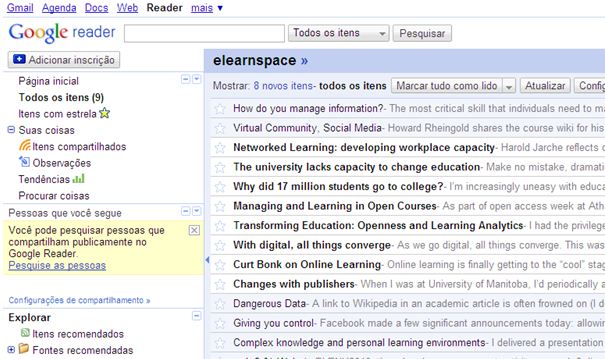
If we choose Google Reader as an aggregator, we must create an account (again, possibly maintaining our Gmail username and password) and after logging in, the following screen will be displayed.


We can check the list of postings of our newly added site as well as consult the others we have previously added.
We will just focus on what we really need and we will be easily updated on new content of the sites of our preference.


You can also subscribe this feed and add it to the Central Feed Centre.


As such we will be creating our own list of favourites that can be checked with Internet Explorer.


New content of other added sites are at a click’s distance. We can add as many we need. They can then be selected from the list of our left.


The next screen shows an example of us checking new content of sites we already had in our list.


New content of our previously chosen sources will be pulled to us instead our going to look for it.
This information sharing structure allows both learners and educators to manage content, avoiding a paralysing sea of information as well as to create one’s personal enriching learning environment.


Wednesday, September 29, 2010

Following up residents' assignments

Haven't you found yourself giving assignments to residents or coworkers through email and realize weeks or months latter that these assignments were not carried out? If so, how do you deal with them?
I used to do it with my "To do" list but, on one hand, this made my "To do" list very long and on the other one, running down every day your "To do" list is not only time consuming, but many times you don't do it at all.

How can we keep an uncluttered "To do" list and at the same time, be reminded timely about the tasks you must follow up?

I have found "Deferred Sender" at http://www.deferredsender.com/ a very useful tool. Deferred Sender is a free service that allows you to schedule emails from any email application or website to be sent in the future.

The way I make it work for me is that every time I send out a task through my email, I just copy it to "deferred@deferredsender.com" with my email and the date on which I want to be reminded about the task. On that date, it will enter my email box and sit at the top of the unread mail to remind me about the task.


You can find more information at http://deferredsender.com/help

Monday, August 30, 2010

“Making your lectures interactive using the cell phones of attendants”

By Dr. Eduardo Mayorga

One of the drawbacks of lectures, from the pedagogical standpoint of view, is that they may lack interactivity. If present, you can only have it with a very small portion of the audience.

When working with your residents in small groups, interactivity can be maintained, but once you have asked an open question and one resident answers, you will never know if the rest had the answer in mind.

To overcome these two drawbacks, you may want to add an 'interactive answering system' to your teaching tools,.

An interactive answering system is usually composed by some kind of hardware that allows participants in a meeting answer to a multiple choice question that the presenter has posted on the screen. Through special software that receives the answers, the presenter can show the results on the screen. The following images show an example of answering hardware and the results of the answer.


These answering systems have the disadvantage that you have to purchase all the answering devices.

At our residency we use a system that allows using the cell phones as answering devices. In this way we had to purchase only the software that can connect to a cellphone or a modem of a cellphone communications provider. In our case we use the modem.

With this method we can receive interactions from any size of audience. The results shown on the previous image come from the system we use.

One advantage is that you can also receive complete text messages for open questions. Following is an example from a small group of residents that were asked to define the acronym: LASEK.


As you can see, you get all kind of versions. The nice thing about the system is that you can display the results as they enter, or show them all at a time, once the last answer entered.

You can read more about SMS Studio, the software we use, clicking here.

We have no financial interest in this software.